Clean up your file: backgrounds and blurry art
Remove a background and sharpen a small file right in the cart.
ADN Learn · Unit 1: Order your first transfers · Lesson 3 of 10
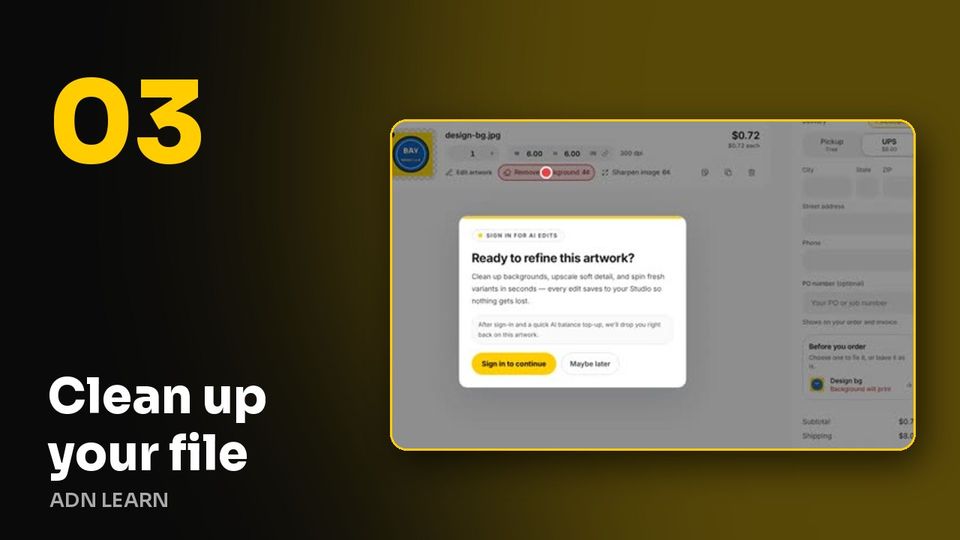 Video coming soon
The steps
- Send what you have. The cart tells you when a background will print.
- Tap Remove background. The button shows its price from your AI credits.
- If the art got smaller, pick the size you want.
- When the cart warns a file might look blurry, tap Sharpen image to upscale it.
- Look your art over. AI cleanup can change small details and text, and every edit is saved so you can go back.
Quick check
The cart says your file might look blurry. What do you do?
Right. Sharpen image upscales it so it prints clean at that size.
Not quite. Try another answer.
All lessons in this unit
- Welcome: how ordering works here
- Upload your art and set the size
- Clean up your file: backgrounds and blurry art
- Make a design with AI Design
- Start from a ready-made design
- Many designs, one order
- Check out: shipping, pickup and paying
- Your files, reorders and order status
- Order with your AI
- Press your transfers
Stuck? Call 888-352-1624. Real people answer.